
Set Smart Upload Defaults to Save Time on Video Uploads.
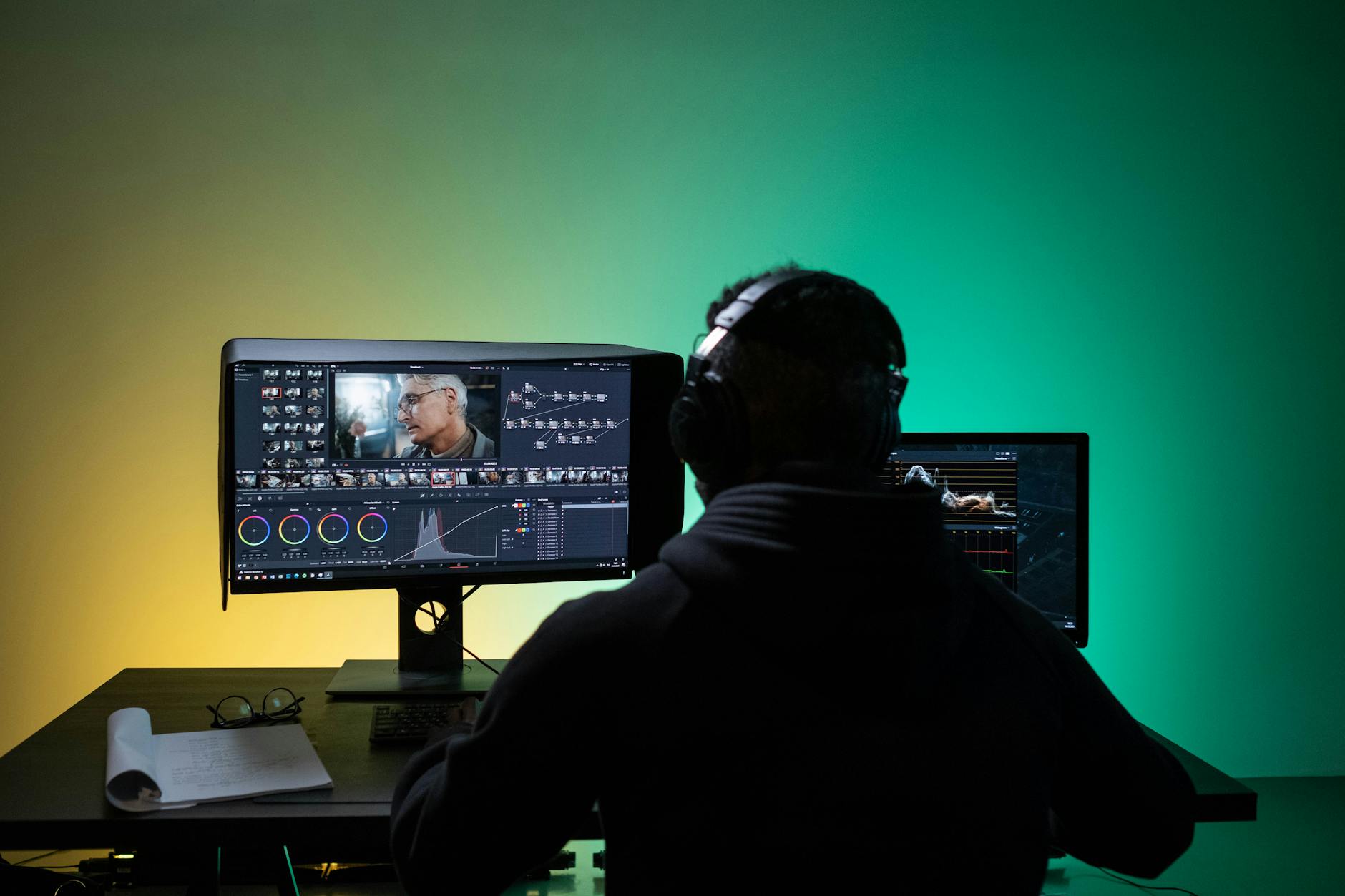
Tired of picking the same privacy, tags, and format every time you upload? If you post often, smart upload defaults can cut your setup time by half or more, and keep your channel consistent.
In this guide, you’ll set time‑saving defaults for YouTube and Vimeo, then lock in export presets in your editor so every file is ready to go. We’ll cover quick steps in YouTube Studio and Vimeo, plus 2025 best practices for crisp video, clean audio, and pro details that never get missed.
Want a quick refresher before you start?
Why Smart Upload Defaults Save You Hours on Video Uploads
Smart upload defaults do the boring work for you, every single time. Set them once, and your videos arrive with the right format, quality, metadata, and privacy. You get faster uploads, cleaner consistency, and fewer mistakes when you are in a rush.
What Smart Upload Defaults Are
Smart defaults are preset choices that apply to every new upload. Think of them as your upload autopilot.
- Format and quality: Preferred codec, resolution, frame rate, and audio settings.
- Metadata: Titles, descriptions, tags, categories, and language.
- Privacy: Public, private, or unlisted by default.
- Comments and visibility: Comment rules, embedding, and publish timing.
On YouTube, you can set defaults for titles, tags, privacy, and more. See the official steps in Set default upload settings - YouTube Help.
Why They Actually Save Time
Manual setup eats minutes. Add that up across dozens of uploads. Defaults remove repeated clicks and reduce decision fatigue.
- Consistency: Every video follows your standard without extra work.
- Speed: Skip retyping descriptions, adding the same tags, or toggling comments.
- Fewer fixes: Right format and bitrate baked in, so videos look sharp on the first try.
- SEO gains: Preloaded tags, categories, and keywords help videos get found faster.
Common Defaults That Pay Off
Small tweaks have a big payoff. Use defaults for the most repeated tasks.
| Default | What it covers | Time saved per upload |
|---|---|---|
| Title template | Series name, episode number, CTA | 30 to 60 seconds |
| Description starter | Links, credits, gear, chapters shell | 1 to 3 minutes |
| Tags bundle | Core keywords and branded terms | 30 seconds |
| Privacy | Public or unlisted by default | 10 seconds |
| Category and language | Correct classification | 10 seconds |
Real Examples That Prevent Headaches
- No more blurry uploads: Set a 4K or 1080p export preset with the right bitrate. You avoid soft footage from low-res or wrong codec.
- Cleaner audio by default: Lock in AAC at 320 kbps so dialogue stays crisp.
- Always on-brand: A description block with social links, sponsor line, and credits appears every time.
- Safer publishing: Default to unlisted, review the video, then switch to public when ready.
Works Across Platforms
Defaults help no matter where you upload. YouTube supports rich upload defaults for metadata and privacy out of the box. Vimeo focuses on clean playback and creative control, which pairs well with presets in your editor and saved templates in your account. For a quick compare of platform strengths, see this guide on Vimeo vs. YouTube for video content.
The takeaway is simple. Set smart defaults once, and your uploads move faster with fewer mistakes, better SEO, and a consistent viewer experience every time.
Step-by-Step: Set Upload Defaults on YouTube for Quick Wins
Lock in smart upload defaults once, and your next videos move faster with fewer mistakes. Follow these steps to set the right file format, quality, and metadata so every upload starts in a good place.
- Sign in to YouTube Studio.
- Go to Settings (bottom left).
- Select Upload defaults.
- Fill out Basic info and Advanced settings.
- Click Save.
Fine-Tune Video Quality and Format Defaults
Default to a format that looks clean and uploads fast. For most channels in 2025, these specs strike the right balance of quality and file size.
| Setting | Recommended default | Why it works |
|---|---|---|
| Container | MP4 | Widely supported, efficient playback |
| Video codec | H.264 | Great quality at small sizes, universal support |
| Resolution | 1080p (1920x1080) | Sharp on mobile and desktop, faster than 4K |
| Frame rate | Match source (30 or 60 fps) | Avoids jitter and duplicate frames |
| Video bitrate | 8 Mbps (1080p) | Crisp detail without ballooning file size |
| Audio codec | AAC | Clean, compatible audio |
| Audio bitrate | 128 kbps | Clear voice, compact size |
Why these choices:
- Use MP4 with H.264 for maximum compatibility across devices, TVs, and browsers.
- Set 1080p as your default. If you shoot 4K, you can still upload 4K files per video, but 1080p defaults help keep routine uploads lean.
- Match the frame rate to your footage. If you record at 30 fps, set defaults to 30. Record at 60 fps, set 60. Keeping frame rate consistent avoids artifacts. YouTube also notes this in its recommended upload encoding settings.
- Start at 8 Mbps for 1080p. It looks sharp for talking heads, tutorials, and most B-roll. If your content has fast motion or lots of detail, bump up to 10 to 12 Mbps.
- Use AAC at 128 kbps for most videos. It is clear for dialogue and keeps files small. Music-heavy content can use 192 kbps.
Quick setup inside your editor:
- Create an export preset with the specs above.
- Name it “YouTube 1080p 8 Mbps H.264 AAC.”
- Use it for most videos so your uploads are consistent.
Before you publish, test a short clip. Upload as unlisted, then watch on an iPhone and an Android device over LTE and Wi-Fi. Check for playback stutter, crushed blacks, or audio sync issues. If playback is smooth on mobile, you are in good shape.
Tip for live creators: if you stream, YouTube lists bitrate and frame rate ranges in its live guide. See the ranges in Choose live encoder settings, bitrates, and resolutions.
Streamline Metadata and Privacy Settings
Good defaults keep your channel tidy and findable. Set these once to reduce clicks and protect your schedule.
- Default title format: Use a short prefix so every title starts clean.
- Example: “How-To | ” or “Weekly Recap | ” then add the unique part.
- Reusable description: Create a block with your CTA, links, credits, gear, and chapter shell.
- Keep the first 2 lines keyword-rich and human. Add links and credits below the fold.
- Category and language: Pick the one you use most so your uploads get sorted correctly.
- Tags: Save a small set of core keywords and branded terms. Add specific tags per video when you upload.
- Privacy defaults: Set to Private or Unlisted. Review the video, add chapters, end screens, and checks, then switch to Public when ready.
- Thumbnail workflow: Save a template in your design tool with safe zones and brand elements. Export a PNG and upload it during processing.
Where to set it in YouTube Studio:
- Open Settings, then Upload defaults.
- In Basic info, add your title prefix, description block, and tags.
- In Advanced settings, choose category, language, comments rules, and visibility (Private or Unlisted).
- Save.
This simple setup creates a consistent brand voice and improves search visibility. If you want a refresher on the full process, this guide on best settings and steps for YouTube uploads in 2025 is a helpful walkthrough: How to Upload Videos on YouTube (Best Settings to Get More Views in 2025). You can also review a quick tutorial on upload defaults here: How to Set YouTube Upload Defaults to Save Your Time.
Key takeaway: set tight defaults once, then customize per video. You cut setup time, reduce errors, and keep your channel consistent.
Easy Setup for Vimeo and Video Editing Tools
Lock in a few smart defaults and your uploads look clean without extra clicks. Vimeo handles compression well, but it still pays to start with a high-quality export. Feed it a sharp MP4, keep your audio clean, and set player defaults once so every video plays the way you want.
Vimeo Defaults for Pro-Looking Uploads
Vimeo transcodes your file into multiple resolutions. Start with a strong master so those versions still look crisp. Use MP4 with H.264, 1080p, and a bitrate around 10 Mbps for most talking-head or tutorial content. If you shoot 4K, export at 4K with a higher bitrate, then let Vimeo create the lower renditions.
Quick primer on why quality in matters:
- Higher input quality gives the transcoder more detail to preserve.
- Stable bitrates reduce banding in gradients and noise in shadows.
- Clean audio at a healthy bitrate avoids artifacts after conversion.
Set smart upload defaults inside Vimeo:
- Log in, go to Settings, then Upload Defaults.
- Format: set your standard to MP4, H.264, 1080p, target 10 Mbps video, AAC audio at 192 to 320 kbps.
- Privacy for review: default to Unlisted or Password while you finalize. You can also set default viewing privacy before you upload. See the steps in How to set your video's viewing privacy before uploading.
- Embedding: allow embedding on your sites only, or everywhere if needed. Add your domains to prevent random third-party embeds.
- Player defaults: pick your brand color, hide the Vimeo logo if your plan allows, show playbar and speed controls, keep autoplay off, and leave loop off for most videos.
- Captions: upload a default caption file or set your preferred text track language so captions are expected on every upload.
- Thumbnails: choose frame or custom image as the default. Keep a folder of on-brand thumbnail images ready.
Where to find more details:
- Vimeo’s official help library has a full section on upload and video settings: Upload and video settings.
Pro tip:
- Use Unlisted for internal review, share the link, collect notes, then flip to Public. Locking this choice as a default saves you from awkward early publishes.
Export Presets in Premiere and Final Cut Pro
Create export presets once, then apply them in seconds. Name them clearly so you never guess which one to use.
In Adobe Premiere Pro:
- Select your final sequence, choose File, Export, Media.
- Format: H.264. Preset: Start with Match Source, then set output.
- Resolution: 1920x1080 for standard, 3840x2160 for 4K.
- Frame rate: match your sequence (30 or 60 fps).
- Bitrate: VBR 1-pass, Target 10 to 15 Mbps for 1080p, 35 to 60 Mbps for 4K.
- Audio: AAC, 48 kHz, 192 to 320 kbps.
- Click the Save Preset icon. Name it “Vimeo 1080p 10 Mbps” or “Vimeo 4K Export.”
- For batches, click Queue to send multiple sequences to Media Encoder, then apply your preset to all items.
Helpful references:
- Adobe’s guide to output quality and settings: Best export settings for Premiere Pro.
- Vimeo’s export instructions for Premiere users: Export from Adobe Premiere Pro.
In Final Cut Pro:
- Open Preferences, Destinations, then add Export File.
- Format: Computer. Video Codec: H.264 Better Quality.
- Resolution: 1080p or 4K to match your project.
- Frame rate: match project settings.
- Audio: AAC, 48 kHz, 192 to 320 kbps.
- Click the destination, choose Save As to create a preset. Name it “Vimeo 1080p” or “YouTube Ready 1080p.”
- For multiple projects, select them in the browser, choose Share, then pick your preset to batch export.
Workflow tip:
- Add these presets to your default project templates. The moment you finish a cut, you can export with one click and upload knowing your Vimeo defaults handle privacy, embeds, and player styling.
Top Best Practices for Video Uploads in 2025
Dial in a few habits and your uploads move faster, look sharper, and get found. The goal is simple: standardize your specs, automate the repetitive bits, and keep an eye on platform updates so your process stays current.
Standardize Your Specs for Clean Playback
Pick one quality path and stick to it. Consistency helps with speed, file size control, and fewer surprises on playback.
- Aim for 1080p or 4K across your channel. Do not mix 720p in the same series.
- Keep frame rate consistent. Match your camera, usually 30 or 60 fps.
- Use H.264 in MP4 for broad compatibility. H.265/HEVC is fine if your workflow and audience support it, but test first.
- Set predictable bitrates. For 1080p, 8 to 12 Mbps works for most talking-head content. Motion-heavy footage may need more.
- Lock audio to 48 kHz AAC and a fixed bitrate, like 192 to 320 kbps, so you avoid mismatched audio issues during transcoding.
Why it matters: Every platform will transcode your file. A clean, consistent master makes their compression look better. For a quick refresher on compression and encoding for business playback, see Vimeo’s guide on video optimization and encoding tips.
Automate Thumbnails, Captions, and Chapters
Set up automation once, then stop doing the same work twice.
- Thumbnails: Build a template with safe zones, text styles, and brand elements. Export a PNG at the same size every time.
- Captions: Auto-generate, then upload corrected SRTs as your default. Captions help watch time, search, and accessibility.
- Chapters: Maintain a chapter shell in your description defaults. Paste timestamps as you review. This pairs well with an unlisted review pass.
Tip: Keep a shared folder called “Upload Kit” with thumbnail PSDs, caption templates, end screen assets, and your description block.
Use Batch Workflows and Smart Scheduling
Batching cuts time and reduces errors.
- Export in batches using your editor’s queue, then upload in a single session.
- Apply defaults, then only tweak what is unique to each video.
- Schedule videos to publish near your audience’s peak. Data varies, but many channels see strong early evening performance. These ideas align with guidance in 8 tips for the best time to upload YouTube videos in 2025.
Quick checklist to run per batch:
- Specs match your preset.
- Thumbnail exported and named to match the video file.
- Captions attached.
- Description, tags, and end screens verified.
- Scheduled time set.
Keep Metadata Templates Tight and Useful
Treat metadata like a starter kit, not a one-size-fits-all solution.
- Title template: short series prefix, then a clear benefit.
- Description top lines: one-sentence hook, keyword, and CTA.
- Tags: 5 to 10 core keywords plus 3 to 5 specific terms per video.
- Category and language: set once, adjust only when needed.
For a solid, modern upload checklist that pairs well with defaults, review this practical walkthrough: How to upload to YouTube, the 2025 ultimate checklist.
Test on Real Devices and Connections
Do a spot check before you go public. It takes five minutes and saves headaches.
- Watch an unlisted upload on iPhone and Android.
- Test on Wi‑Fi and cellular to catch buffering issues.
- Check blacks, skin tones, and dialog clarity at 1x and 1.5x speed.
- Skim chapters and cards to confirm timing.
If you see banding, artifacts, or pumping, bump bitrate slightly or reduce heavy noise reduction before export.
Update Presets When Platforms Change
Platforms adjust recommended bitrates, HDR support, and caption handling over time. Put a calendar reminder every quarter to:
- Re-read official encoding and upload guides.
- Re-export a short test clip with your defaults.
- Adjust bitrate or color settings if you notice quality shifts.
You also gain from reviewing player features, privacy defaults, and embed controls as platforms roll out updates.
Avoid These Common Pitfalls
Small mistakes cause big problems later. Set defaults that prevent them.
- Mismatched audio sample rates: always 48 kHz to avoid drift.
- Variable frame rate from phones: transcode to constant frame rate before upload.
- Crushed blacks from heavy contrast filters: check scopes and keep headroom.
- Missing captions or thumbnails: block publish until both are attached.
- Wrong privacy setting: default to Unlisted or Private for review, then flip to Public.
Focus on Accessibility and Viewer Experience
Accessibility boosts reach and retention.
- Provide accurate captions and, when needed, SDH tracks.
- Use readable on-screen text with high contrast.
- Avoid loudness spikes. Target consistent dialog levels with a limiter.
- Add chapters for easy scanning.
Good habits stack up. With consistent specs, smart automation, and routine checks, your uploads take less time, look better on day one, and earn more views with less stress. For more encoding and playback clarity you can apply across platforms, keep a reference to Vimeo’s practical optimization guide.
Conclusion
Smart upload defaults do quiet, steady work across YouTube, Vimeo, and your editor. They save minutes on every video, protect quality, and keep your brand tight without extra clicks.
Make one move today. Open YouTube Studio, set a description template, default privacy to Unlisted, add core tags, and save an export preset in your editor. Want more? Watch for upcoming posts on growth boosts like better thumbnails, smarter scheduling, and analytics that guide your next upload. Share what works for you in the comments, or subscribe for more practical tips.


 Posts
Posts


0 Comments:
Post a Comment